How to: Connect Expedia and Smoobu easily

To connect Smoobu to Expedia, only a few steps are required. It is very easily done. Once you have the connection set up, you can manage your bookings, prices, and minimum stay from within Smoobu and never have to worry about double bookings.
Activate Expedia interface
1. Log in to your Expedia Partner Central account
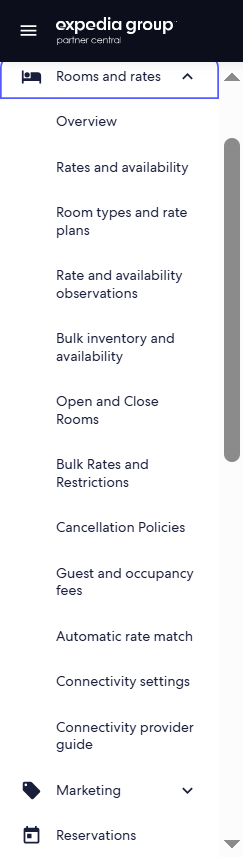
2. Go to Rooms & Rates → Expedia Connectivity Settings.
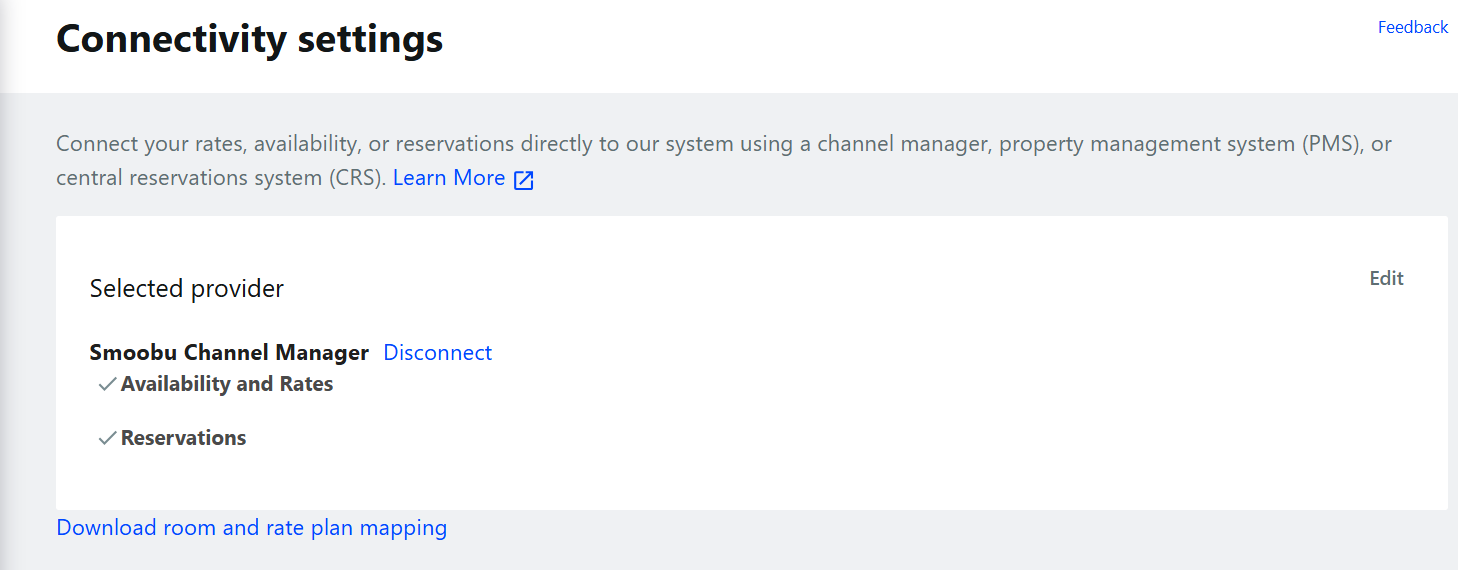
3. Select Smoobu GmbH as your channel manager.
4. Enable Rates & Availabilities and Booking Retrieval.
5. In Smoobu, go to Channels → Connect (under Expedia).
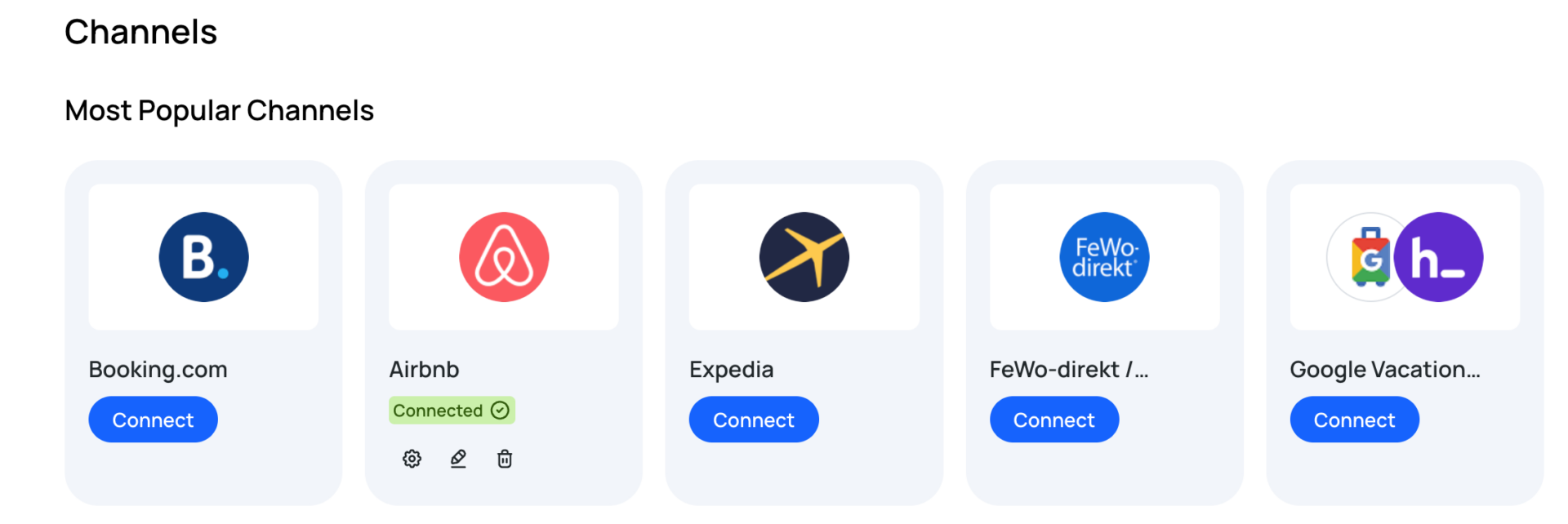
6. Enter your Expedia Property ID and click Save.
7. Under your property, click Not connected, match the corresponding Expedia listing, and click Save.
- Please note: It can take up to 30 minutes after activating the connection on Expedia for your property to appear in Smoobu.
8. In your Expedia account, update your notification settings so that:
- E-delivery is the primary notification method.
- Email is the secondary notification method.
Important: There is no initial import of existing Expedia bookings. You'll need to manually add any current reservations to Smoobu. All future bookings will be imported automatically once the connection is active.
Go to Rooms and Rates - Expedia Connectivity Settings
You may now also change your prices and minimum stay. If you already have those set in Expedia, this is optional.
Find out more about Smoobu Channel Manager.
If you are still experiencing issues connecting Smoobu to Expedia, we are more than happy to answer any questions you have.